
Intranet Navigation Examples: 12 Proven Patterns to Improve Findability and UX

“I can’t find what I’m looking for.” It’s one of the most common intranet complaints—and poor navigation is often the reason. As digital workplaces grow, clear pathways matter more than ever. The intranet navigation examples in this article show how the right structure helps users find what they need—faster.
In this article, we share 12 real-world intranet navigation examples that demonstrate how modern intranets improve findability, usability, and access to essential content. These navigation examples for intranets include mega menus, landing pages, directories, and personalized navigation—each illustrating practical ways to create a more intuitive digital workplace.
Before diving into the examples, it’s worth noting that effective intranet navigation starts with understanding user needs, defining a clear content structure, applying intuitive labels, and designing for different devices. The intranet navigation examples below show how thoughtful, user-centered design turns complex content into easy-to-navigate experiences.
Now, let’s explore the intranet navigation examples.
Learn more: Download the independent report Intranet & Employee Experience Platforms to explore insights and examples on intranet navigation, search, and overall findability in this year’s independent report.
Intranet Navigation Examples: Mega menus
Mega menus provide a comprehensive overview of intranet content, enabling users to quickly access relevant pages, documents, and tools. They can be personalized to user roles or departments and styled to match your organization’s branding.
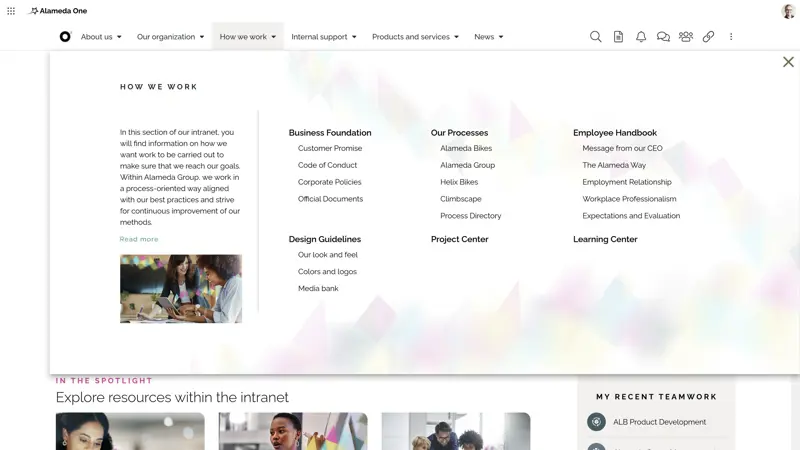
In the first intranet navigation example below, we see a basic navigation layout with content in two levels. Here we have also added an introduction to this section on the left, including an image. In this way, it is possible to provide a short summary and set expectations on what type of content can be discovered here.
The second example below is also a dynamic mega menu showing a structure of pages in two levels. But in this case, we are highlighting the first level in the menu with an image, a headline, and a short description. In the four cards respectively, we also present the subpages within the section - providing the same overview as above, but here also with a more branded look and feel.
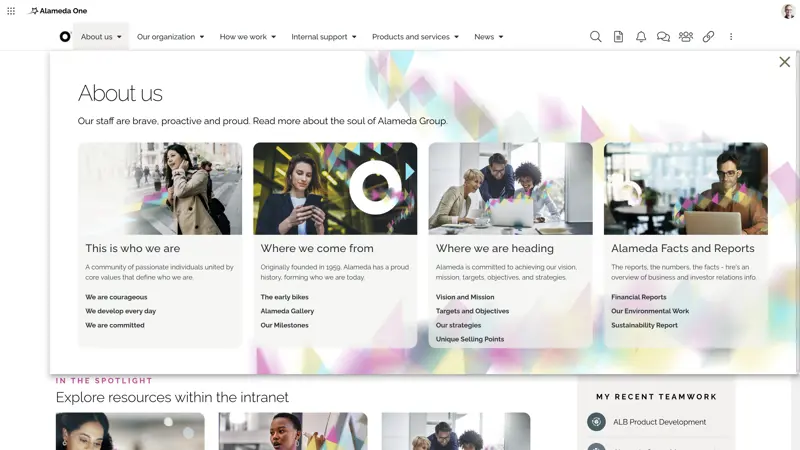
As the two examples above show, mega menus can be designed regarding layout, headings, background, and more to support the overall ‘look and feel’ that many organizations want their intranet to mediate.
In the next example, the mega menu provides navigation to news articles. Here, the navigation is divided into six tabs, each showing a selection of news articles and access to news archives.
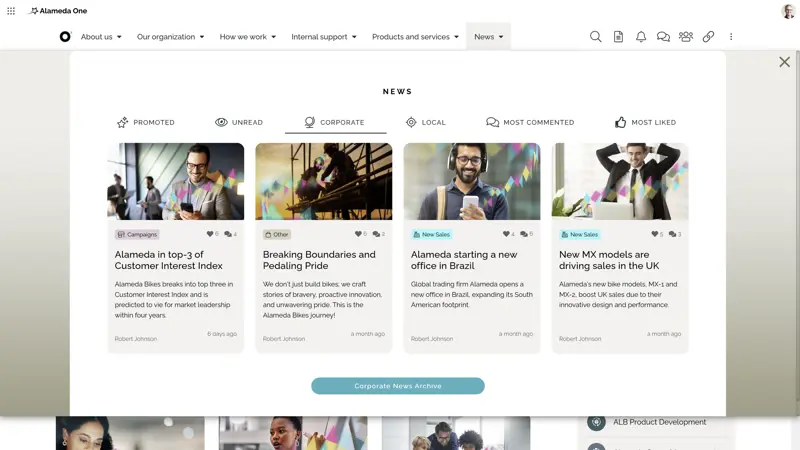
As these intranet navigation examples show, mega menus are flexible tools that support both functional and branding goals.
Intranet Navigation Examples: Landing Pages
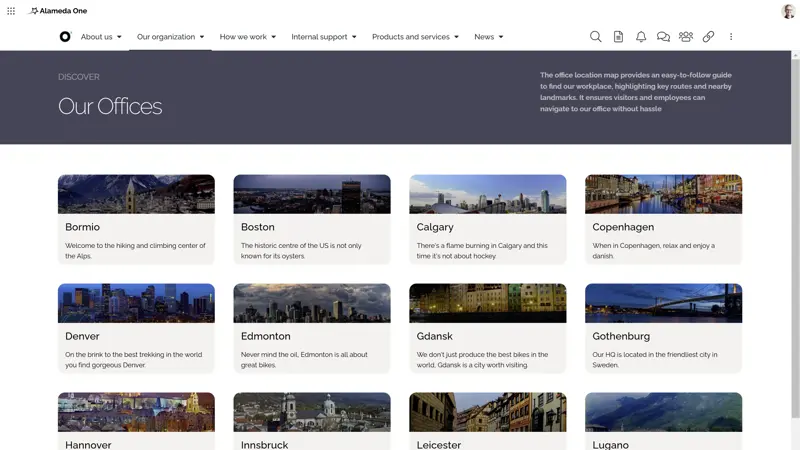
Landing pages can be a helpful supplement to the mega menu, providing information on and navigation within a sub-section of the intranet. Our experience is that landing pages not only should provide innovative navigation solutions but also be used to implement a corporate profile. An example is this landing page showing all offices within a business, as in the example below.
Another example is the landing page with content presented on the page and with tabs added to enhance navigation further. The tabs will add another dimension when it comes to navigation, and this example can be described as a three-in-one landing page.
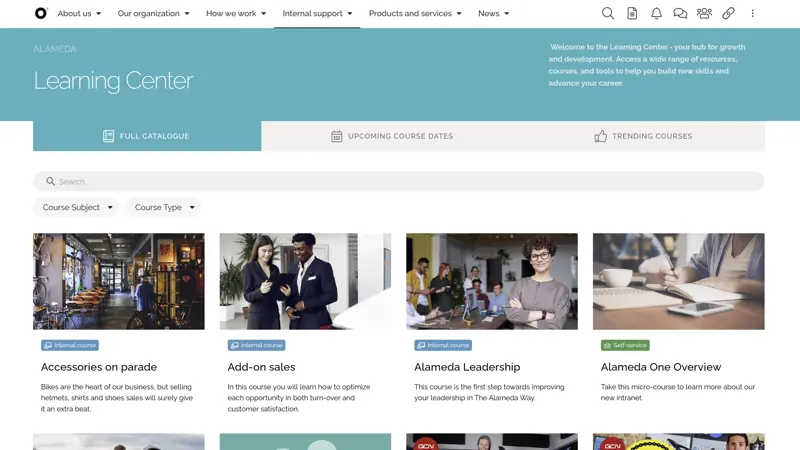
In the above example, end-users can navigate to courses within four areas and sign up for any course that matches their needs and interests. But also check the course calendar in the second tab and a list of trending courses in the third tab.
Intranet Navigation Examples: Current Navigation and Breadcrumb
On web pages within a section, you need to provide current page navigation, which in most cases is provided to the left on the page. In the example below, we are navigating the Employee Handbook, where the page Approval of time reports is on the third level, with Workplace Professionalism and Time Management being on levels 1 and 2.
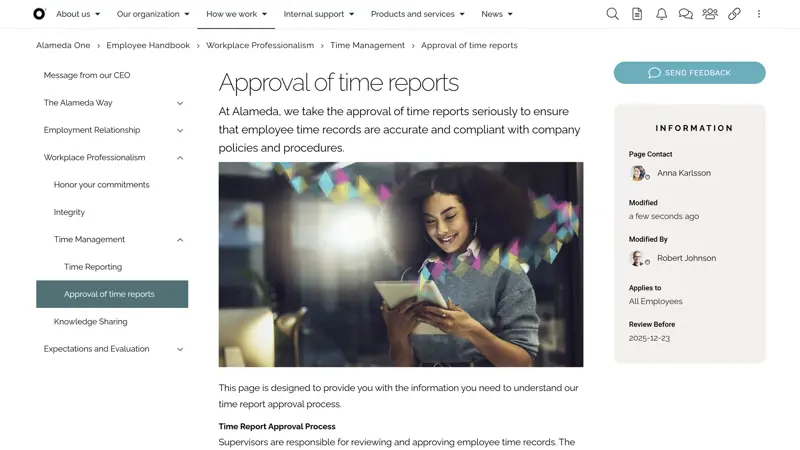
The Breadcrumb, just above the page content, is also a vital part of page navigation, showing the end-user a trail of pages in the structure.
But the top node ‘How we work’ is not included in the breadcrumb, which shows another important learning on navigation – that there can be a difference between how you organize where information is created and managed and how the navigation structure is presented. This can be used to achieve a setup that is efficient for content owners and authors and navigation that is optimized for findability.
Intranet Navigation Examples: Directory Navigation
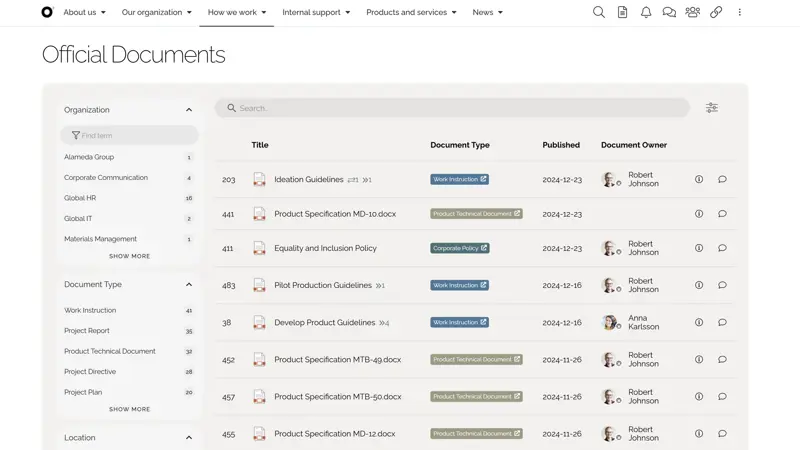
Directories can be a good solution when building navigation for objects where there are no real hierarchies. These directories then typically list the objects in an order of your choice and provide search and filtering features to make it easy for end-users to find what they are looking for. The intranet navigation examples below show when directory navigation is a suitable choice are for a news article archive, a directory of official processes, or, as in the image below, a project portfolio.
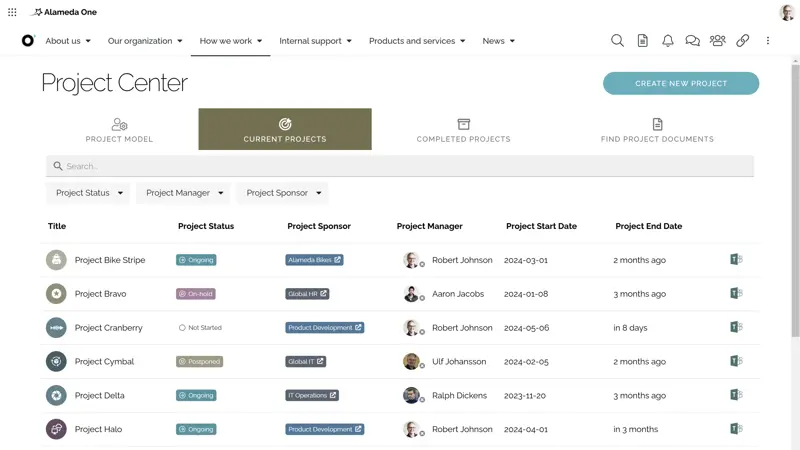
Intranet Navigation Example #7: Portfolio navigation for listing current projects within an organization.
In the example, end-users can find all internal projects running within the organization, and they can search and use filters for finding projects of a certain type.
Another example where this type of navigation can be used is presented below, where controlled documents are rolled up and presented based on properties as document type, organization, location, and similar.
Intranet Navigation Examples: Visual Navigation
Providing visual navigation can be a good solution for presenting information when the structure has a meaning and is part of the ‘message’. Typically, we see that this option is being used when visualizing and publishing content related to organization charts and/or business processes. In the first example, the end-user can navigate the organization to find information on departments, business areas, subsidiaries, or similar. The charts are fully dynamic and can be easily updated when the organization changes.
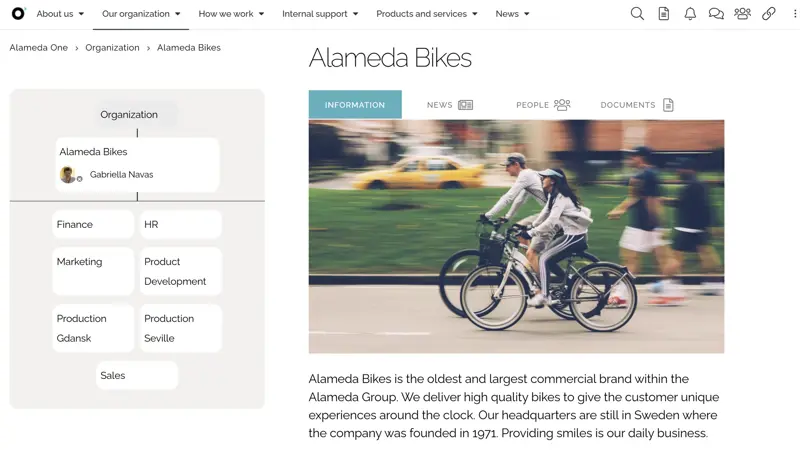
Intranet Navigation Example #9: Using organization charts for navigation aligned with the company structure.
Of course, this type of navigation is also applicable when you want to use business processes as navigation to content in a recommended way of working. End-users can navigate in between processes, sub-processes, phases, and more to find instructions, task lists, links to tools, descriptions of best practices, and more.
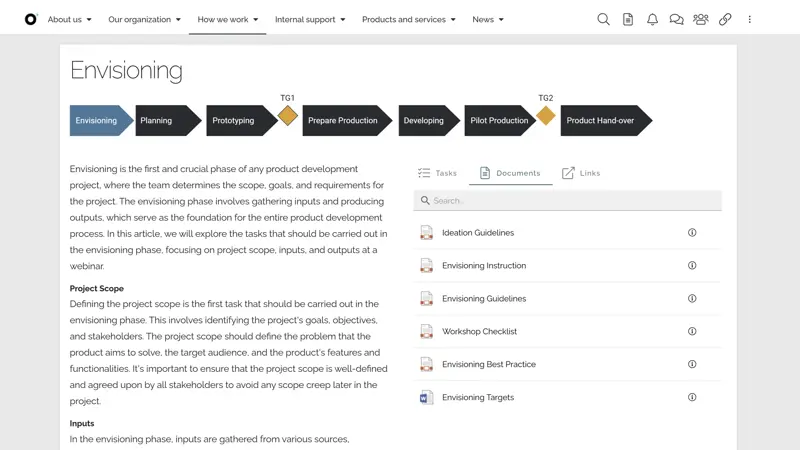
Intranet Navigation Examples: Personalized Navigation
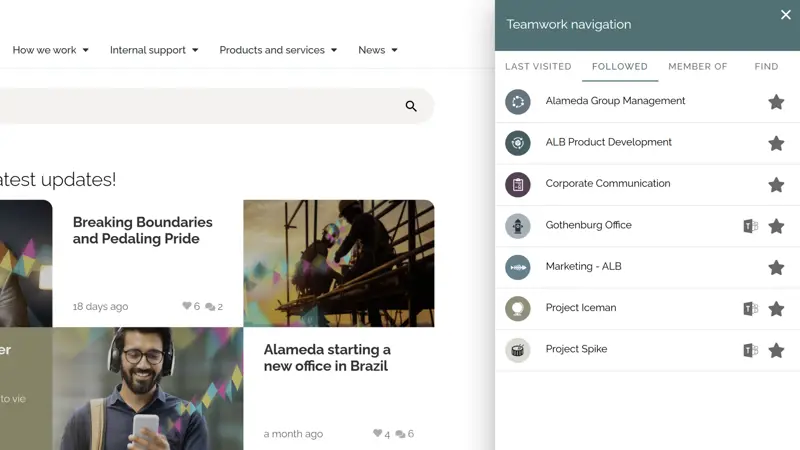
A modern intranet will also support several types of personalized navigation, where the preferences of end-users will decide the navigation. This can be done by asking employees to follow pages, documents, or teams, subscribing to areas of interest, and when information is targeted to the end-user based on properties. The example below shows personalized navigation to Followed Teamwork, a panel available across the solution and accessed from an icon in the top banner.
In the last example in this article, the end-user will find personalized navigation based on previous usage patterns, as My Recent Apps or My Recent Teamwork. We think having a zone on the start page dedicated to personalized navigation to frequently used content is a great idea.
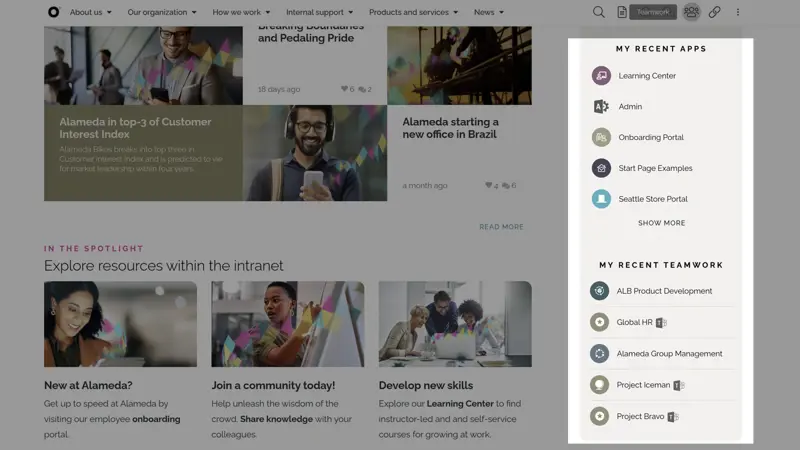
Having those navigation options on the start page will enhance the feeling of quick navigation, being able to access recent content in only one click.
Design Your Solution Using Intranet Navigation Examples
Designing an effective intranet starts with understanding user needs and business goals. From there, organizations should conduct a content inventory, define a clear information architecture, and establish governance practices that support long-term structure and consistency. This foundation is essential for strong findability.
The 12 intranet navigation examples in this article can be used as proven patterns and best practices when designing or improving your intranet—helping you create a user-centered, easy-to-navigate digital workplace.
If you want to go further, explore these free resources:
✔ Watch the video to see how Omnia supports communication, engagement, productivity, and user experience in a modern intranet.
✔ Talk to our experts to discuss your next intranet initiative and see how Omnia compares to your requirements.
✔ Looking for inspiration? Our blog post Intranet Homepage Examples – Must-Have Features for High Performance Solutions showcases the best intranet homepage examples.
✔ Download the document Mastering Intranet Search – the Comprehensive Guide to a Great Search Experience.
✔ Want to see more intranet feature examples? Check out this blog: Intranet Examples: Top 10 Features That Make Good Intranets Great.